
Anime
Classic, modern and cel-shaded. 20+ anime styles.
Change a video’s style in minutes and keep the motion
Upload a clip, pick from 40+ styles or your own reference image, and Domo AI repaints every frame. Turn it into anime, 3D cartoon, pixel art, watercolor and more, while every walk, gesture and camera move stays the same.
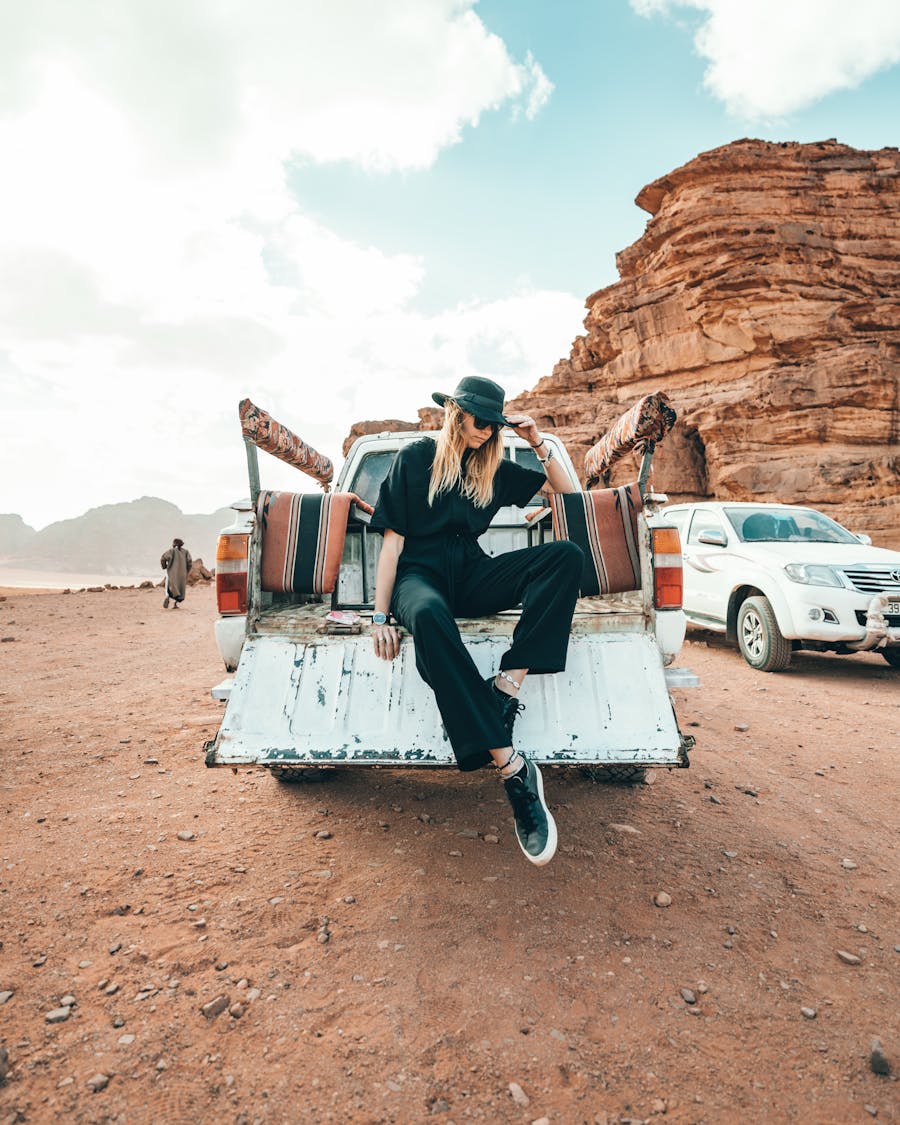
Restyle Video is DomoAI’s video-to-video style transfer. It changes how your footage looks without changing what happens in it. You don’t need keyframes, masking or animation skills.
People, cars, landscapes, timing and camera moves
Colors, textures, shading, linework
Edges, shapes and motion are extracted from each frame.
Style signals come from a preset, your reference image or a text prompt.
Each frame is redrawn in the new look on top of the original structure.
Temporal consistency keeps frames matching so the style doesn’t flicker.
Named presets include Japanese Anime, PS2 Game, 3D Cartoon and Pixel Art, spread across model versions V1 to V6.
Classic, modern and cel-shaded. 20+ anime styles.

Bold, rounded shapes with soft CG lighting.

Oil painting, watercolor and impressionist strokes.
Thick outlines, halftones, pencil sketch and chalk.
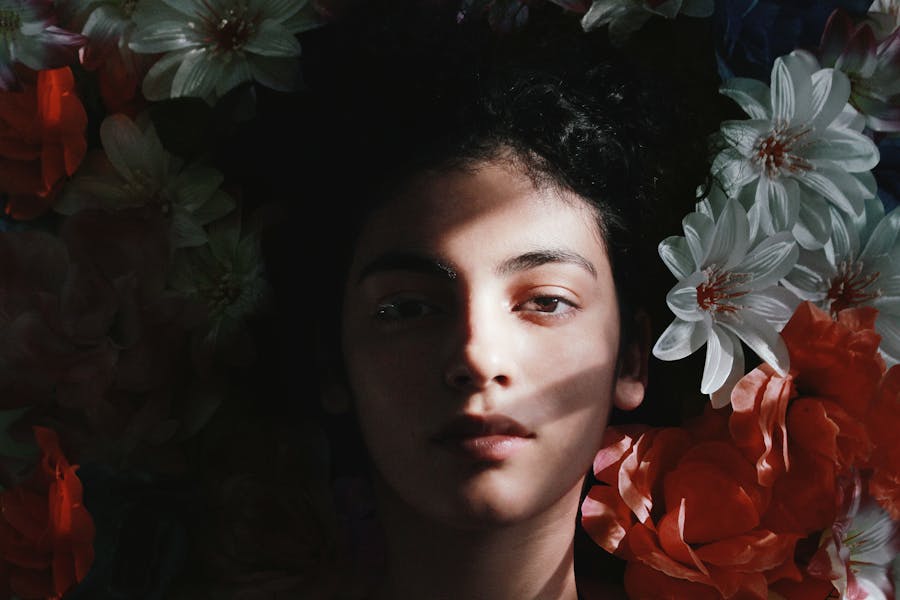
Pixel Art and PS2 Game looks for gaming and nostalgia edits.
Upload a style image, or describe the look in text with the Fusion model.
Describe your clip and the advisor recommends settings, warns you about common problems and writes a starter prompt.
From DomoAI’s Restyle Video page and help center. Limits can differ by model, so check the number shown in the tool before you upload.
| Input formats | MP4, MOV, AVI and most common formats |
|---|---|
| Upload size | Up to 50 MB |
| Length | Up to 30 s per video on the Restyle page. The help center lists 10 s per Video to Video generation, so split longer clips. |
| Styles | 40+ presets (V1–V6), Fusion text prompts, reference images |
| Default duration | 3 s (adjustable) |
| Aspect ratios | 16:9, 9:16, 1:1, custom |
| Output | MP4, audio kept, HD (4K via upscaling) |
| Render time | Usually 2–5 minutes |
| Watermark | On free outputs, removed on paid plans |
Keeps mouth movements in the styled video matched to the original speech or singing. It needs a visible mouth, a front or 3/4 angle and good lighting.
Applies the style only to the main subject and leaves the background as it was.
Removes or replaces the background during the restyle. Useful for green-screen footage.
Different versions suit different shots. V6 is best for half-body and close-up portraits and isn’t recommended for full-body shots.
Set how much of the clip to restyle (default 3 s) and the frame shape for your platform.
Try a different style on the same upload without uploading it again. It’s the quickest way to compare looks.
Trim to the key moment. Use clean light, a steady camera and the best resolution you have.
Open Restyle Video (Video to Video) and upload an MP4, MOV or AVI up to 50 MB.
Pick a preset, upload a reference image or describe the look in text.
Duration, aspect ratio, and Lip Sync, Subject Only or Screen Keying as needed.
Preview, then use Re-gen to try other styles on the same clip.
Upscale if needed, then add captions, music and titles in your editor.
A stylized look stops the scroll. Turn a simple walk clip into anime.
Restyle gameplay and fan edits so they look like production art.
Match a brand illustration style, or try a paper-cutout look for lessons.

Test visual directions on real footage before committing to a look.
| Problem | Why | Fix |
|---|---|---|
| Smearing on fast action | Motion blur hides the structure | Use steadier footage or slow the action |
| Mushy details | Low-resolution or compressed source | Upscale the source first with the Video Upscaler |
| Texture flicker | Very fine patterns change from frame to frame | Choose a smoother style or lower the intensity |
| Faces look odd in wide shots | Model suits close-ups (e.g. V6) | Switch model version for full-body clips |
| Mouth out of sync | Lip Sync off or mouth hidden | Turn on Lip Sync; keep the face front or 3/4 |
| Product hard to recognize | Style too strong | Use Subject Only or a lighter style for brand work |
Color filters change color only. Restyle Video changes the whole look of each frame.
| Aspect | LUTs & filters | Editing plugins | Restyle Video |
|---|---|---|---|
| Changes | Color only | Effects per layer | Texture, line, shading |
| Skill needed | Low | Keyframes, masks | None |
| Anime / cartoon look | Limited | Yes | |
| Frame-level control | Full | Full | Limited |
Restyling uses credits from the same balance as every other DomoAI tool. Longer clips and higher quality cost more. Standard and above add unlimited Relax mode on supported models. New accounts get free starter credits to test.
Pricing explained →Free outputs are watermarked and meant for personal use. DomoAI’s Restyle page links the commercial-use license to its Pro plan, while its Terms allow commercial use more broadly. Confirm for your plan before client work. Only restyle footage you own or have permission to use, and get consent from people on camera.
DomoAI Terms ↗DomoAI’s video-to-video style transfer. You upload a clip, choose a style or reference image, and it repaints every frame in that look, such as anime, 3D cartoon, watercolor or pixel art, while keeping the original motion and timing.
40+ presets across model versions V1 to V6, including Japanese Anime, PS2 Game, 3D Cartoon and Pixel Art, plus 20+ anime styles, watercolor, oil painting and pencil sketch. You can also upload a reference image or describe a style in text.
DomoAI’s Restyle page says it processes videos up to 30 seconds, while its help center lists 10 seconds per Video to Video generation. Check the limit shown in the tool, and split longer videos into segments.
MP4, MOV, AVI and most common video formats, up to 50 MB. Output is MP4 with the original audio kept.
Yes. Turn on Lip Sync to keep mouth movements matched to the original speech or singing. It works best with a clearly visible mouth, a front or 3/4 angle and good lighting.
Most videos process in 2–5 minutes, depending on length and complexity.
You can try it with free starter credits. Free outputs carry a watermark and are for personal use. Paid plans remove the watermark, and Standard and above add unlimited Relax mode on supported models.
Use a paid plan and footage you own or have rights to. DomoAI’s Restyle page ties the commercial-use license to Pro, while its Terms allow commercial use more broadly, so confirm for your plan before client work.
Usually because of fast motion, a shaky camera, low-resolution source footage or a very detailed style. Use steadier footage, upscale the source first, or pick a smoother style.
Upload a video, pick a style and keep every move. Start with free credits.